 Prismattyc
Prismattyc brings terminal tabs, split panes, and saved workspaces into one desktop window.
Open a terminal
- Launch Prismattyc from your application launcher.
- Open the command palette with Ctrl + Shift + P to find available actions.
- Create a tab with Ctrl + Shift + T, or use the tab bar's plus button.
- Split the current pane with Ctrl + Shift + E. Use Ctrl + Shift + Z to expand a pane and again to restore its layout.
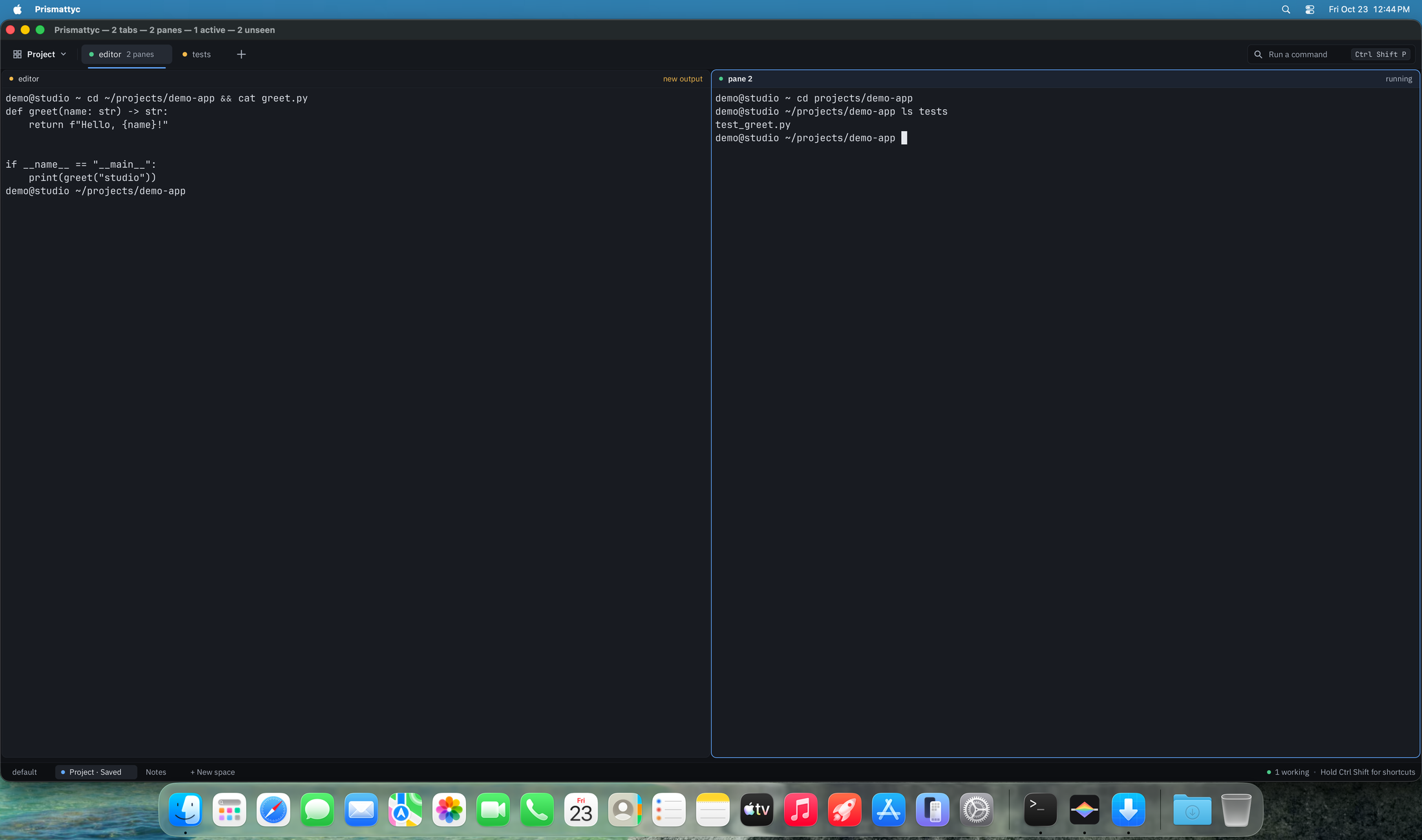
Keep a session running
A managed session runs in pmuxd, the session server. It can keep running after you detach, while that server remains alive. From a terminal, create a named session and attach to it:
pmux up
pmux new work --no-attach
pmux attach work
To detach from a terminal attach, press Ctrl + \, release the keys, then press D. Reconnect with pmux attach work. Use pmux ls to see sessions and their current pane IDs.
A saved layout is not a running process. Saved Spaces can reopen a workspace, but cannot preserve programs across a computer restart.
Make a Space for a project
Use the plus button in the Spaces rail, or create a named Space from the command line:
pmux space create project
pmux space save project
pmux space open project
A Space owns its managed sessions. Open another Space to switch projects without mixing their session lists. Read Spaces, panes, and layouts for blank terminals, arrangements, and restoration.